
Expand pictures without cropping
Make any photo fit any frame
Pick a shape — 16:9, square, story or print — and we fill in the new edges so nothing gets cropped.
JPG, PNG, WebP, HEIC and more · up to 120 MB
- Free
- No sign-up
- Photos stay on your device
Real results
Same photo, bigger frame
Every picture below came out of this tool. The part you photographed stays exactly as it was — only the frame around it grows.
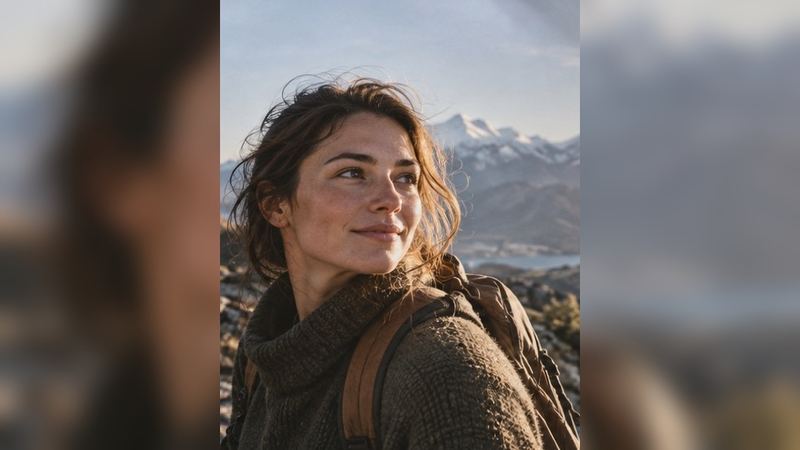
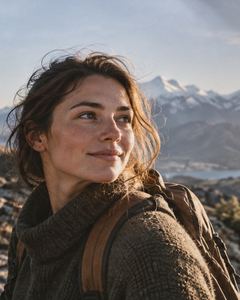
Tall photo, wide screen
Tall photo → 16:9 · blurred edges
Portrait to landscape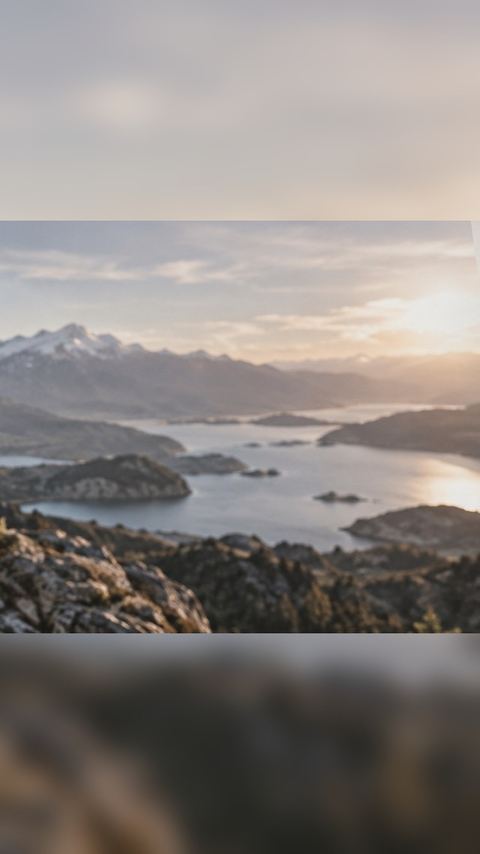
Wide photo, tall story
Wide photo → 9:16 story · blurred edges
Landscape to portrait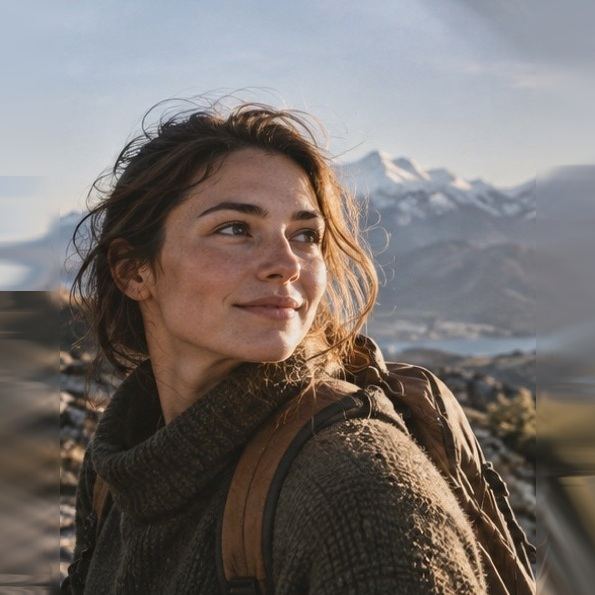
Square, nobody cut off
Tall photo → square · smart extend
Make it square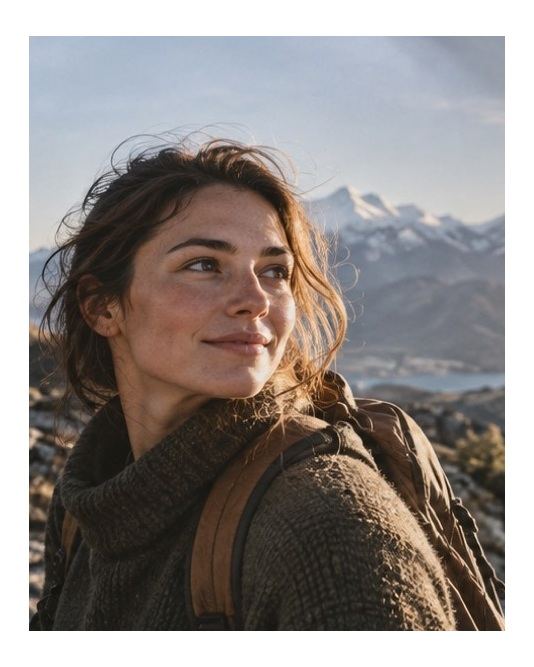
A clean border to print
White border added · 6% each side
Add a border


Three steps, no setup
From “doesn’t fit” to done
Choose a photo
Tap the button, drop a file or paste a screenshot. Phone photos, HEIC included, open straight away.
Pick the new shape
16:9, square, a story, a print size or your own. The new edges fill in at once — blurred, mirrored, plain colour or carried on.
Download it
One button saves a JPG, PNG or WebP at the exact size shown. Your original photo is left exactly as it was.
All tools
What do you need it for?
Each one opens with the right shape and fill already picked for that job.
- Expand Image Without CroppingPick a shape, pick what fills the new edges, and keep every pixel you started with
- SquareA 1:1 frame reached from the outside
- Blur FillA soft, blurred copy of your own photo fills the new edges
- Mirror FillThe new edges are a mirror of the photo’s own border
- Add MarginAn even band on all four sides, or four different bands if that is what the layout wants
- 9:16 to 16:9The tall frame goes into the wide one by growing outward
- Aspect RatiosEvery common aspect ratio and platform size
- AI Expand ImageA model paints new edges that carry on from your photo
- Portrait to LandscapeTall becomes wide by building the sides, not by losing the top and the bottom
- Extend ImageWiden one side, or two, to make room for a title
- Change Aspect RatioAny W:H, a decimal ratio or a size in centimetres
- Instagram No CropThe whole photo at 1080 × 1350, 1:1, 3:4 or 9:16
- WhatsApp DP Without CropA square with the app's circle drawn on it
- Expand JPG SizeMore KB for a form's minimum, quality first — no junk bytes
- Signature Size140 × 60, 4 × 2 cm or 300 × 80 by adding paper, not squashing
- YouTube Thumbnail Size16:9 at 1280 × 720 or larger, the badge corner marked
- Banner SizeLinkedIn, X and channel-art banners, safe areas drawn
- Landscape to PortraitA wide photo into a 9:16 story, whole in the middle
- Smart ExtendEdge-aware continuation with no model at all
- Transparent PaddingSee-through space around a cut-out, measured from what shows
- Print Without Cropping4 × 6, 5 × 7, 8 × 10 or A4 with a border and a DPI check
- Batch ExpandA folder to one shape, each photo with its own margins
- AI Expand LimitsWhere the model is offered and refused, with reasons
One file, eight answers
What each fill would do to a 1080 x 1920 phone still
Taken to 16:9 that file needs 1,166 new columns on each side of a 1,080-wide photograph. Every fill below is offered for it, and every one of them costs something different. Two of these verdicts are arithmetic — the model’s and the mirror’s — and the rest are a judgement about this one file, stated so you can disagree with it before you spend a step on it.
Open a photograph and the rail recomputes all of this against yours.
The reflection has 1,080 px of photograph to spend and this edge is 1,166 px deep, so past the first reflection it begins repeating the same strip. On a shallower edge it is one of the best answers here.
- Edge stretcheStreaks here
One column of pixels smeared across 1,166 new ones. Sky and studio paper survive that; a jetty, a railing or a horizon of buildings becomes a set of horizontal lines.
The photograph enlarged behind itself and blurred until it reads as scenery. It has no ceiling, because it is built from the whole frame rather than from the edge, and it is what this conversion starts on.
A flat field, and an honest one — nobody mistakes it for the photograph carrying on. Sample the dominant edge colour and it disappears; pick white and you have a print margin.
- GradientgA frame, not a continuation
Two colours lifted from opposite edges of the photograph and swept across the new canvas. Same bargain as one colour, with somewhere for the eye to travel.
- Nothing at alltYour format decides
The new region is left empty. PNG and WebP can record that; JPG has no way to, and writes white into it instead.
- Smart extendxHolds the horizon
The texture at the seam carries across, then the edge's own colours run outward along the lines that meet the frame and soften as they go. Over 1,166 columns the sky gradient and the waterline stay level; the jetty and the figure are not continued, only their colours.
For this conversion the model is not offered: it would need about 1,166 new columns on each side and there is not enough photograph beside them. A blurred cover is the honest answer here, and it is already selected.
Your photo keeps every pixel it arrived with. What changes is the frame around it — and what we build in the part the camera never saw.
Pick a shape, then pick what fills the new edges. Everything in the tool's panel stays live at once, so you can see what a choice costs the moment you make it. JPG, PNG, WebP, AVIF, GIF, BMP and ICO open, and TIFF where your browser can read it; a HEIC from an iPhone pulls in a decoder the first time it meets one.
What this tool does to your photo
It makes the canvas bigger. That is the whole idea, and it is worth being precise about what it means, because three other things sound like it and are not. Your photograph is copied into a larger grid at its own size, landing on whole-number coordinates with smoothing turned off for that one draw, and then the space around it is painted. The rows and columns you photographed are the same rows and columns when you save.
Nothing here resamples the original photograph.
So the thing that grows is the frame, not the picture. A 1080 by 1920 photo from a phone asked for 16:9 comes back as 3,413 by 1,920: the height is untouched, 2,333 columns of new material appear at the sides, and roughly two thirds of what you are looking at was built rather than taken. That proportion is printed under the canvas the whole time you are working, because it is the number that tells you whether the shape you asked for was a reasonable thing to ask of this photograph.
| Target | Canvas it becomes | Built here |
|---|---|---|
| 4:5 | 1,536 x 1,920 | 30% |
| 1:1 | 1,920 x 1,920 | 44% |
| 16:9 | 3,413 x 1,920 | 68% |
| 21:9 | 4,480 x 1,920 | 76% |
The other direction works the same way round. A wide photograph asked for 9:16 grows downward and upward rather than losing its sides, and a photograph of any shape asked for a square grows whichever axis is short. One rule, applied consistently: the axis that is too small grows, and the axis that is already big enough is left alone.
What happens, and in what order
The file is read, and turned the right way up first
Before anything is measured, the tool works out whether your browser already applied the rotation flag your camera wrote into the file, by decoding a two-pixel test image and looking at which pixel came out red. That sounds fussy until you notice what a mistake costs here: rotate a portrait photo twice and it is a landscape one before you have chosen a single thing, and the shape you then ask for is the shape of a mistake.
You choose a target, and the canvas is measured
Either a shape — one of the seven chips, or a ratio you type — or four margins given in pixels or as a percentage of the photo. Shapes grow the axis that is short. Margins grow exactly what you tell them to, on each edge independently, which is what you want when the job is white space for a print rather than a frame for a platform.
The fill is painted across the whole canvas
All of it, including the part your photograph is about to cover. That looks wasteful and is not: a fill that stopped precisely at the join would need that join to be exact to the pixel, and one rounding error would show up as a bright hairline between your picture and its own reflection.
Your photograph goes on top, once
One draw, at 1:1, at integer coordinates, with interpolation switched off. Everything underneath is scenery; this is the photograph, and it is the last thing to land.
The file is written, here
The canvas is encoded as a JPG, a PNG or a WebP and handed straight to your browser's downloads. The photo you open here is read by this tab and nowhere else — there is no server behind this page to send it to. What you see on screen is a reduced copy for speed, and the export runs the identical painting routine at full size — same code, same order, same result, more pixels.
Edges, formats and limits
Coming in: JPG, PNG, WebP, AVIF, GIF, BMP and ICO — TIFF where your browser can read it — plus HEIC from an iPhone, which pulls in a decoder the first time one arrives rather than making every visitor carry it. Going out: JPG, PNG and WebP, which are the three every browser can genuinely write. A file heavier than 120 MB is refused before it is opened, and a photograph past roughly 32 megapixels — 16 on an iPhone — stops and asks whether a lighter working copy is acceptable, because the canvas being built is larger than the photograph going into it.
A few file types arrive with something worth mentioning, and the tool mentions it under the canvas rather than burying it here. A JPG written for a printing press carries four ink channels instead of three screen ones, so the browser converts it and the colour shifts very slightly. A picture that already has see-through pixels at its edge makes mirror and stretch copy that emptiness outward, so the rail points you at a colour or a gradient instead. And a file with more than one frame is opened at the first.
Nothing here knows what was actually outside the frame
Seven of the eight fills are arithmetic on the pixels you already have: reflected, smeared, extended, blurred, averaged or swept. The eighth is a model, and it does not know either — it produces what usually carries on past an edge like yours, which is a good guess and never a record. On sky, grass, water, wallpaper and fabric the distinction does not matter, because more of the same thing is the truthful answer. On a straight architectural line, a tiled floor, a line of text or a face at the edge, it matters enormously, and nothing in the rail will rescue it.
The generated fill is real now, and this page was wrong about it for months
This site used to say a model small enough to run in a browser tab was several hundred megabytes, needed graphics support most phones lack, and took the better part of a minute. Those figures were estimates and they were wrong. The model it now offers is 26,639,447 bytes, MIT-licensed (code and weights), runs on plain WebAssembly with no graphics requirement, and takes about two and a half seconds for each 512-pixel square it fills. What we said about the subjects it fails on was right, and it is still offered only up to twice the area of your photograph, because past that it stops continuing an edge and starts inventing a scene.
An animated file comes out as a single still
A GIF or an animated WebP is opened at its first frame and saved as one picture. Expanding every frame of an animation, keeping the timing and writing the container back out is a genuinely different program, and a tool that quietly threw away ninety frames without saying so would be worse than one that says this out loud.
The awkward questions
I asked for 16:9 and the picture got wider instead of shorter. Is that a mistake?
No, it is the one decision this whole site is built on. There are two ways to turn a 1080 by 1920 photo into a 16:9 one: add 2,333 columns of something to the sides, or delete 1,312 rows off the top and bottom. The second is a crop, and a crop is what you came here to avoid, so the width grows every time. If you did want the trim, that is a different job and a different tool — the dashed box under Placement will show you exactly what it would have taken.
Will the part of the picture I actually took come out softer than the original?
It cannot. Your photograph is copied into the bigger grid one pixel to one pixel, at whole-number coordinates, with smoothing switched off for that single draw. No scaling happens to it at any point, so the grain, the sharpening and the compression noise all land exactly where they were. Everything the tool invents is painted underneath it beforehand and never on top of it.
Which fill should I pick if I have no idea?
Blurred cover, nine times out of ten. It is the one every social platform trained people to expect, it has no structure in it for the eye to catch on, and it fails gently rather than strangely. Mirror beats it on foliage, water, gravel and crowds, where a reflection reads as more of the same thing. Edge stretch beats both on a plain sky or a studio backdrop. One flat colour beats all three when the picture is going into a document.
Can I put a photo of a person into a wide frame without it looking odd?
Usually, if you keep them away from the join. A face or a hand that touches the original edge is the hardest case there is: mirroring gives them a twin, stretching smears them sideways, and a blur puts a soft ghost of a face behind the sharp one. Nudge the photograph off centre with the arrow keys so the subject sits away from the seam, then use blur rather than mirror. If the result still argues with itself, the honest answer is that this frame was not the right shape for that photo.
Does the file I get out weigh more than the one I put in?
Almost always, because there are more pixels in it. A 9:16 photo taken to 16:9 has roughly three times the area, and even though the new part is soft and compresses well, the file still grows. The estimate in the Output panel updates every time you settle on something, so you can watch what a choice costs before you commit to it. If the number matters more than the shape, drop the quality slider a few points first — it moves the figure far more than the fill does.
Why does the tool ask before opening a very large photo?
Because the canvas it is about to build is larger still, and a browser tab that runs out of room does not fail politely — it hands back an empty rectangle or it closes. Past about 32 megapixels on a laptop, or 16 on an iPhone, we stop and offer to carry on with a lighter copy instead, with both choices weighted the same because neither one is wrong. The file on your device is never altered whichever you pick.
Which page you actually want
Every route on this site drives the same engine. What differs is how much has already been decided when you arrive: the front page starts neutral and waits for you to type a ratio, and the six others open with a target, a fill and a seam setting chosen for the job in their name. That saves three decisions on the way in and costs nothing, because every control is still sitting in the rail and every one of them still moves.
So pick by the sentence you would use to describe the job. “I have a still from a phone video and the slot is widescreen” is the 9:16 page. “This is tall and it has to be wide”, with no particular numbers attached, is portrait to landscape. “It has to be square and I am not cutting anybody’s feet off” is the square page. “I want the soft version everybody else posts” is blurred edges. “The printer asked for a border” is margins. “I want the new edge to carry on from the photograph rather than repeat it” is the model, which is a download and a wait and is offered only for modest extensions. If none of those is your sentence, stay here and type the ratio in.
What the route never changes is the arithmetic. How much of the finished frame gets built rather than photographed depends on your picture’s proportions and the target’s, and on nothing else — the door you came in by does not move that figure by a single pixel. Past about two thirds the fill has stopped decorating the picture and started being it, which is the point at which the choice in the fills guide matters more than the shape you asked for.
Everything else on this site
- 9:16 to 16:9The tall phone frame opened straight into the wide one, with the width doing the growing.
- Portrait to landscapeThe same turn described in words rather than numbers, for any tall photo you have.
- Square without cuttingA 1:1 frame reached by adding to the short sides instead of trimming the long ones.
- Blurred edgesThe soft scenery you have seen behind a million reposts, built here from your own photo.
- Margin for printingEven white space on all four sides, given in pixels or as a percentage of the photo.
- The guidesThree longer pieces on what gets added to a frame, and how to tell when it has gone wrong.